
DLSS 5 Swapper Overlay Not Working: F8 Checks
Check a missing DLSS 5 Swapper F8 overlay by route, hotkey, executable, API, component version, and connection state, with clear recovery and reporting steps.
Identify the panel you expect
The compact F8 Swapper overlay, ReShade’s Home panel, the Multipass tool panel, and OptiScaler’s interface are different control surfaces. A working Home panel with no F8 overlay does not mean all injection failed. Conversely, an application preview can look functional without any game connected.
The overlay documentation describes the bridge. Use the component guide to establish which panel belongs to your installed route.
Check the supported conditions first
- Confirm that the actual game executable is 64-bit and currently uses DX11 or DX12 for this compact overlay.
- Verify the intended ordinary native / Feeder route and an add-on-capable ReShade installation. The current release uses Feeder 0.15.1 or RenoDX DLSS5 v4.7 as appropriate.
- Keep Swapper running. Check the tray/process rather than assuming a closed window means the application is still connected.
- Read the configured hotkey. F8 is the default, but the user can change it and another application may consume it.
- Confirm the installed game folder and current renderer match the running process.
Multipass uses its Home panel and Pass Count. For Vulkan or 32-bit games, use the panel documented for that route; the compact F8 overlay requirements above do not apply.
Interpret status before changing settings
| Observation | What it tells you | Next check |
|---|---|---|
| Preview only in the app | You are editing or viewing the overlay’s appearance | Check a real running-game connection |
| Waiting or not running | The bridge has not established the expected live state | Process, executable, route, and loaded add-on |
| Connected, values read back | Configuration communication works | Whether the intended neural consumer evaluates successfully |
| Home works but F8 does not | At least one panel loads | Compact-overlay prerequisites and key conflicts |
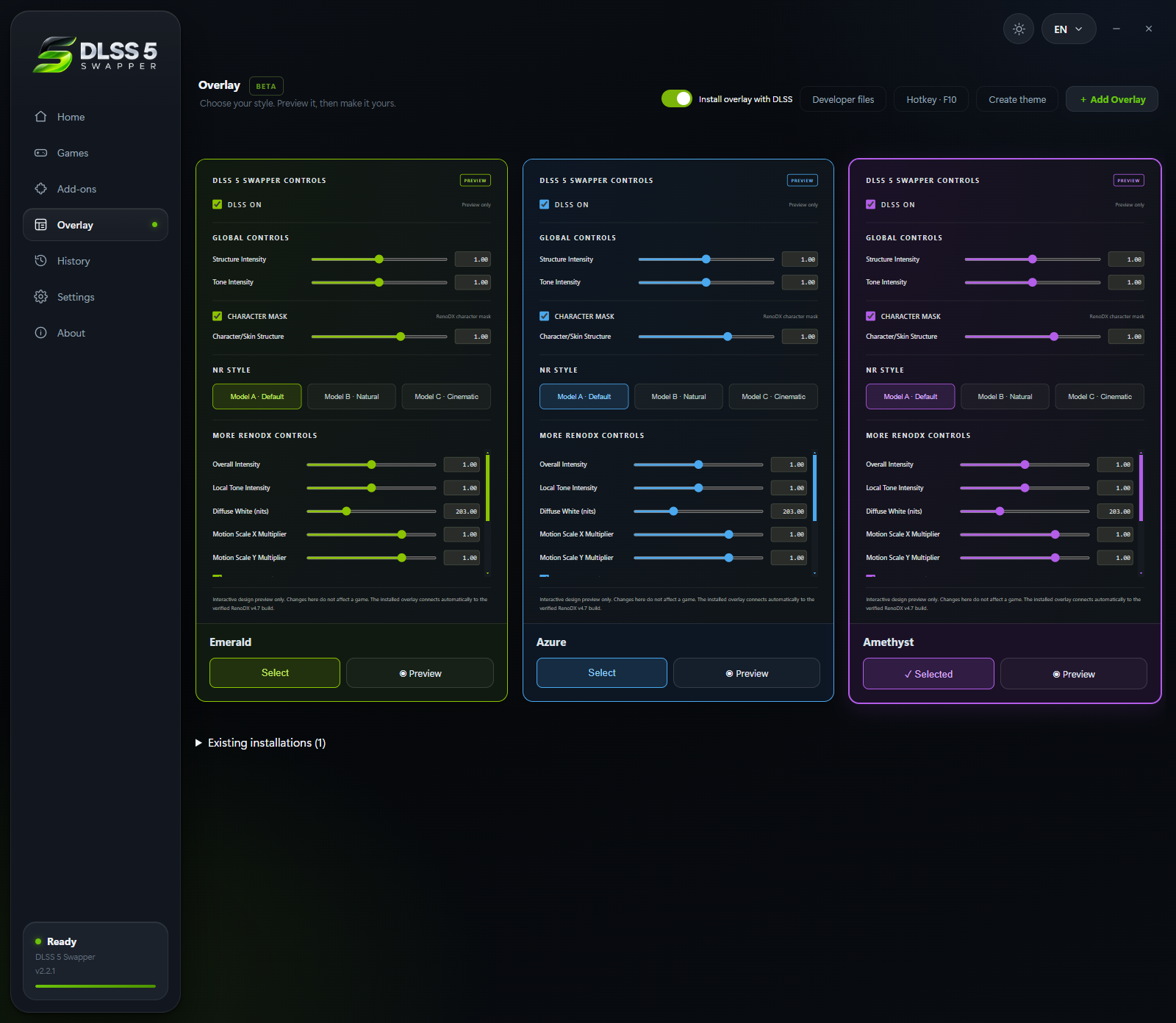
This v2.2.1 screen has a custom F10 shortcut. The default is F8; check your configured key rather than copying this example. Preview only means no game is connected to the preview.
Apply only the relevant version fix
Version 2.2.3 addressed a DPI-related transport problem discussed in issue 189. The ordinary native-route consumer error in v2.2.5 was separately fixed in v2.2.6 and can require reinstalling that route into the game.
Neither correction proves all F8 failures are solved: issue 354 contains a v2.2.7 report without a confirmed maintainer diagnosis in the reviewed record. Avoid repeatedly applying unrelated workarounds.
Save diagnostics or restore
Use Save diagnostics, preserving the connection state, API, bitness, driver, route, and component versions. Note whether Home works and whether the configured key reaches the game. If the panel remains waiting, check the connection and component status rather than relying on a fixed delay.
If you cannot establish the required setup, follow the general diagnosis or restore the game. Normal appearance adjustment is covered by add-ons and controls.
Related Articles
DLSS 5 Swapper Compatibility: RTX 3060 and Beyond
Compatibility
Check DLSS 5 Swapper requirements for RTX 3060 and other GPUs, separating Windows, drivers, APIs, models, game routes, and the compact overlay's limits.
Update DLSS 5 Swapper and Check Game Components
Restore & Update
Update DLSS 5 Swapper while preserving game backups, distinguish app and component versions, and handle the native-route fix with a repeatable check.
DLSS 5 Swapper and Multi Frame Generation
Settings
Understand whether DLSS 5 Swapper adds multi frame generation, identify which component provides it, and separate generated frames from neural rendering.